

Before you begin
- The invoice’s Status is Faktur Pajak.
- The Faktur Pajak is attached to the Freshdesk ticket.
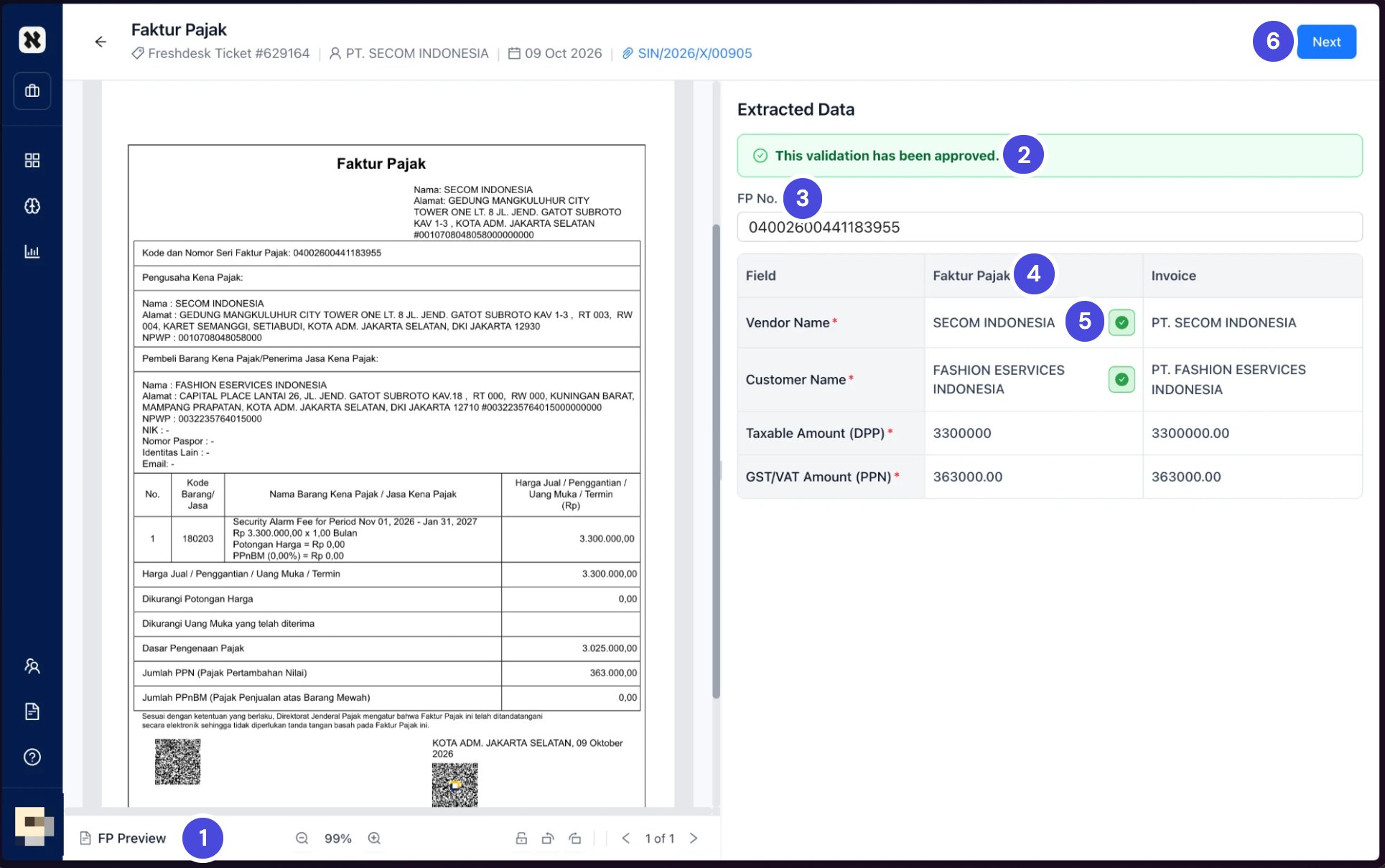
A finished Faktur Pajak check. The Faktur Pajak leaves out "PT" from both names, so both rows were acknowledged.
1FP Preview
2Status banner
3FP No.
4Faktur Pajak and Invoice values
5Acknowledged check mark
6Next
Check the Faktur Pajak
1
Check that the document under FP Preview is the Faktur Pajak for this invoice.
If it’s the wrong document, select Reattach and choose the right one.
2
Check FP No., the Faktur Pajak number, and correct it if needed. It's required.
3
Compare the four rows. Each shows the value on the Faktur Pajak and the value on the Invoice.
- Vendor Name
- Customer Name
- Taxable Amount (DPP)
- GST/VAT Amount (PPN)
4
For each mismatched row where both documents describe the same thing, select the check mark beside the Faktur Pajak value to acknowledge it.
The check mark turns green. Acknowledge each row separately. If you’re not sure a row qualifies, read When to acknowledge a mismatch below first.
5
Select Next.
What happens nextThe banner reads
This validation has been approved. The invoice goes to Matching. See Match a 51 or 53 series invoice for 51 and 53, or Match a 52 or 54 series invoice for 52 and 54.