

Add the missing invoice
1
On the Invoice Dashboard, select Add Invoice.
2
In Ticket ID, enter the Freshdesk ticket number, then select the search arrow beside it.
The ticket’s documents appear.
3
Select the invoices to add.
4
Select Attach.
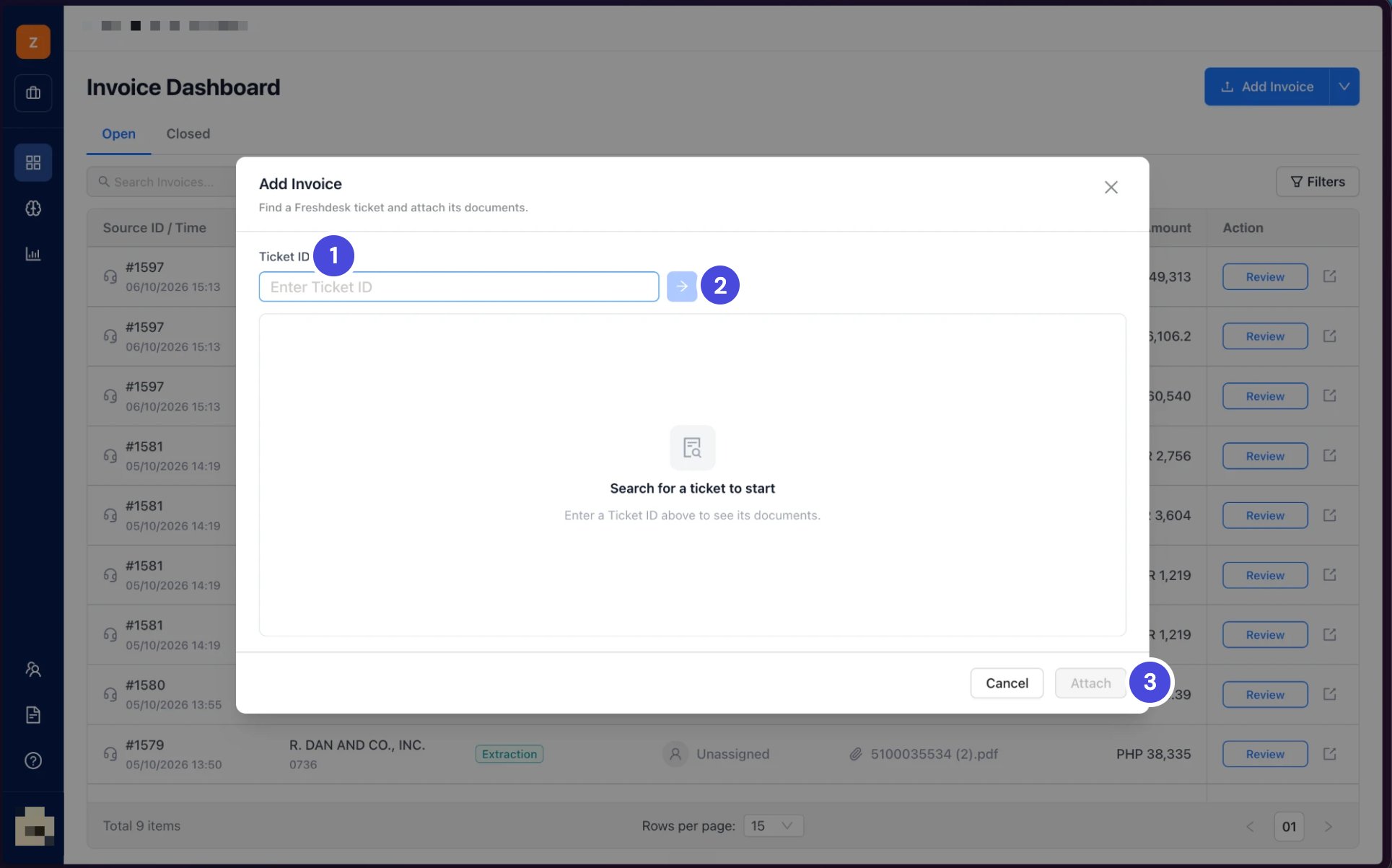
Add Invoice finds a Freshdesk ticket and attaches its documents.
1Ticket ID
2Search arrow
3Attach
What happens nextEach invoice you attached appears as a row on the dashboard, linked to the ticket, exactly as if it had come through Neoflo Status.
Check your understanding
These questions cover all of Module 2.1. Which Freshdesk field do you change to send a ticket to Neoflo?
1. Which Freshdesk field do you change to send a ticket to Neoflo?
Neoflo Status, set to Ready for Neoflo. Not the standard Status.
2. A ticket holds three invoices. How many rows appear on the dashboard?
2. A ticket holds three invoices. How many rows appear on the dashboard?
Three. One per invoice, all with the same ticket number.
3. Do you need to close the Freshdesk ticket after posting?
3. Do you need to close the Freshdesk ticket after posting?
No. Neoflo closes it and emails the requester once every invoice on it is posted or rejected.